Appearance
Qualiteam ↔ Telegram Integration (Step-by-step Guide)
1. Connect a Telegram account
Open the project integration settings: In the left sidebar, open Projects, select the project you want (e.g., Standard Support QA Project) and go to the Integration tab. In Integration Settings, choose Telegram.
In the Connection section, fill in:
Account Name — a clear name (e.g., Support Bot, Agent Account, Anna Smith, etc.).
Phone Number — in international format (e.g.,
+.....).Click Send code.
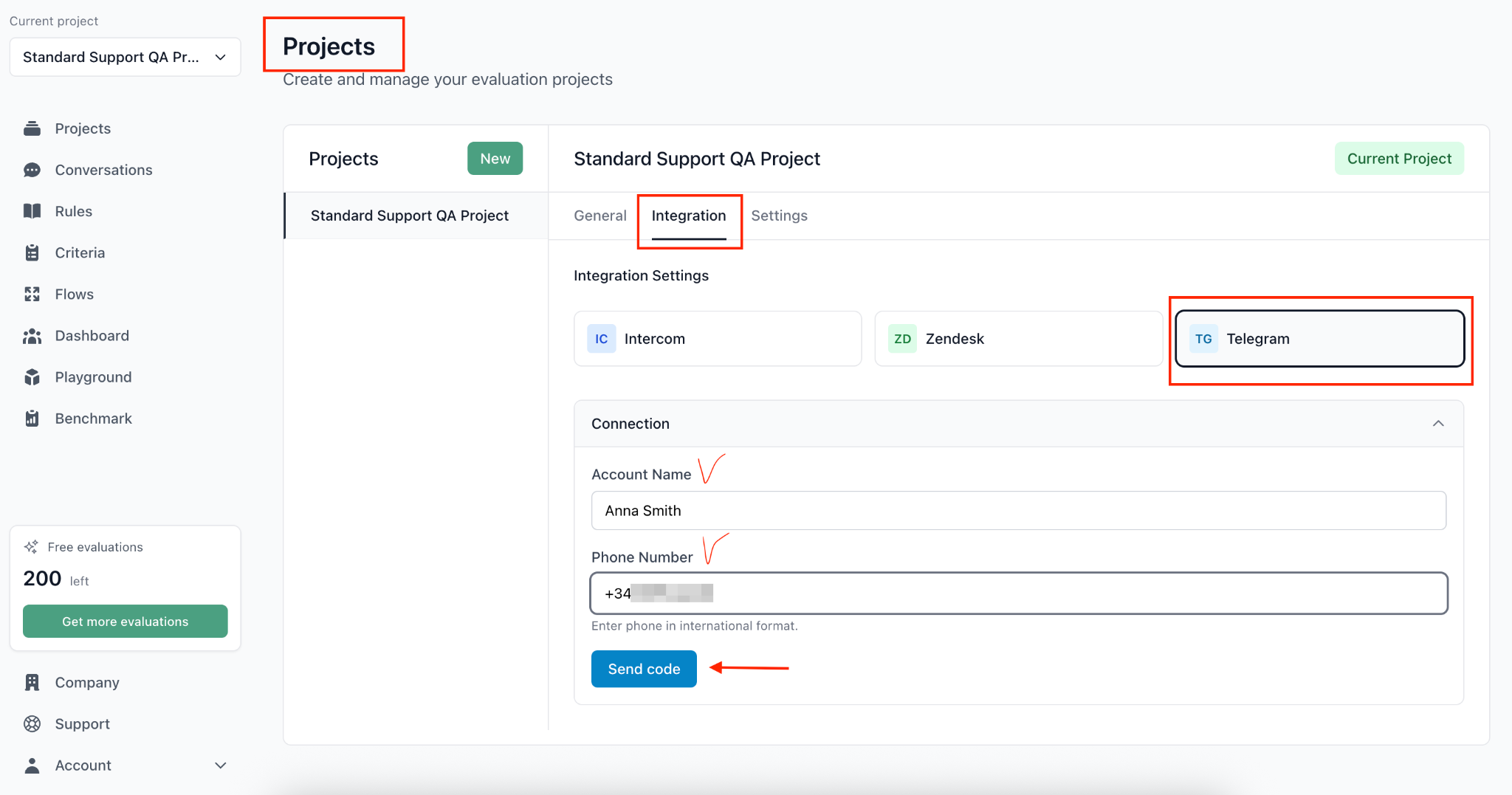
The form shows where Telegram sent your code. For delivery through Telegram, check the verified Telegram service chat on a device already signed into that account. For SMS delivery, check messages on the phone number shown in the form. For an anonymous +888 number, the form will direct you to Fragment to view the code.
If Telegram offers SMS as the next delivery method, Send code by SMS becomes available after Telegram's waiting period. Click it to request a new code; SMS is never requested automatically. Enter the latest code and click Verify code.
Use Cancel to change the phone number or restart an expired connection attempt. If the result of an SMS request cannot be confirmed, start a new attempt rather than resending the old request.
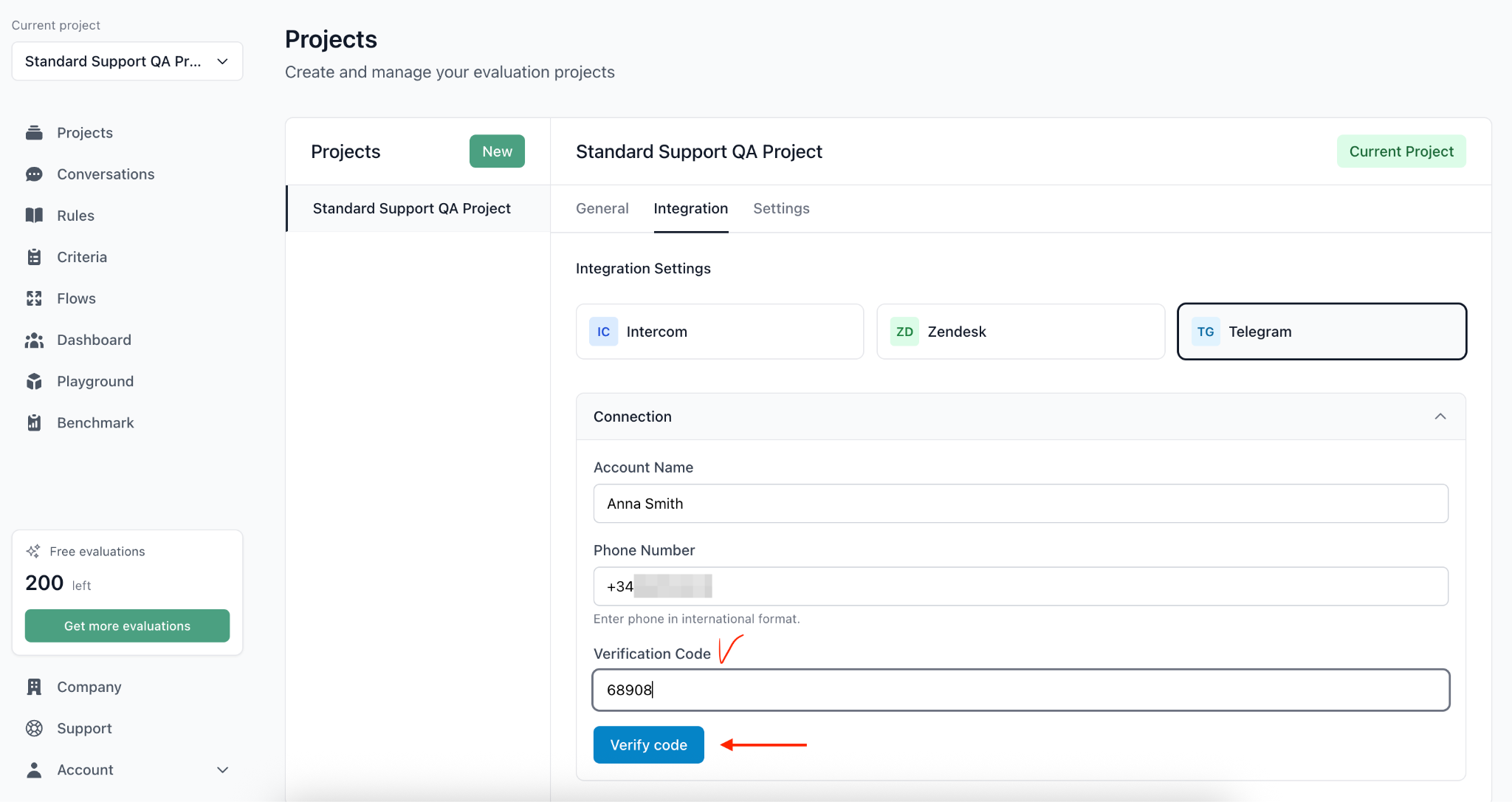
If you have 2FA enabled in Telegram, also enter your password when prompted.
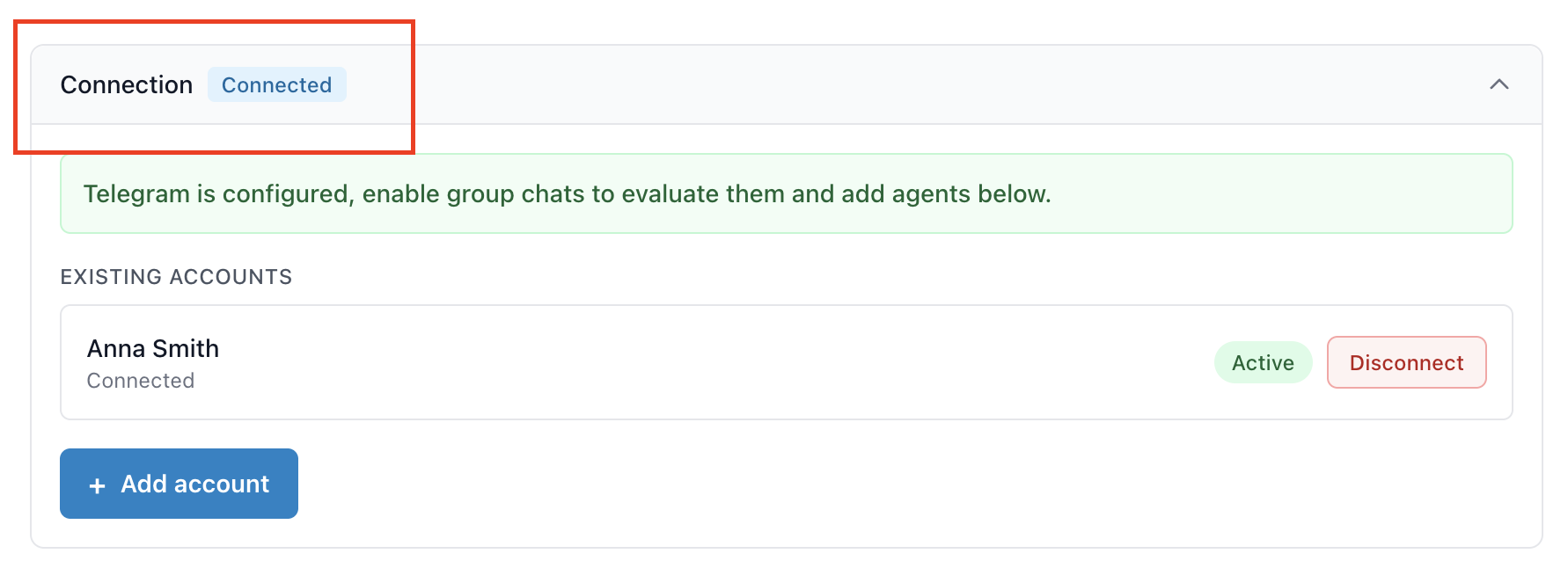
✅ After successful verification, the section header will show Connected, and you’ll see Existing Accounts below
- The connected account will show Connected and have an Active badge.
- You can disconnect it using Disconnect.
- You can connect another account via + Add account (if you need multiple sources).
2. Add Agents
To make sure Qualiteam correctly distinguishes support agents from customers in Telegram:
Agent messages will be evaluated,
Everyone else will be treated as customers.
- Scroll to the Agents section.
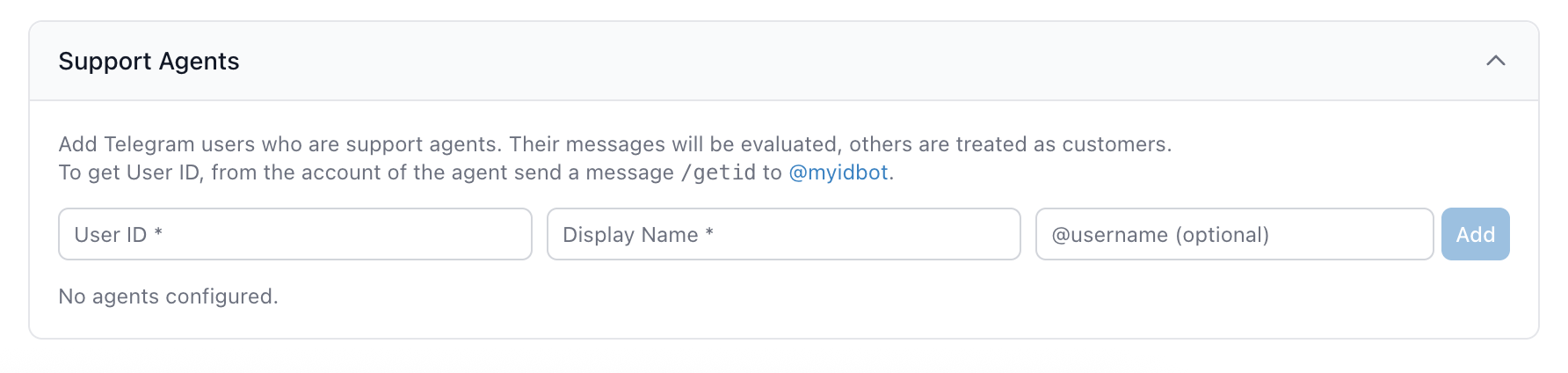
Get the agent’s User ID:
- From the agent’s Telegram account, send
/getidto @myidbot.
- From the agent’s Telegram account, send
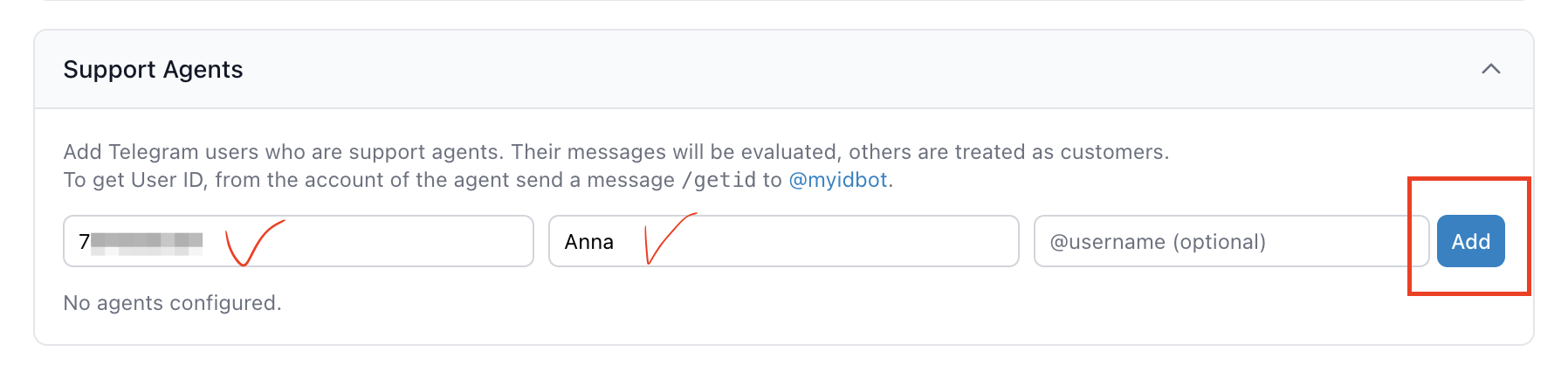
In Qualiteam, fill in:
User ID — the numeric ID returned by @myidbot,
Display Name — the agent’s name (how it will appear in Qualiteam service),
@username — optional.
Click Add.
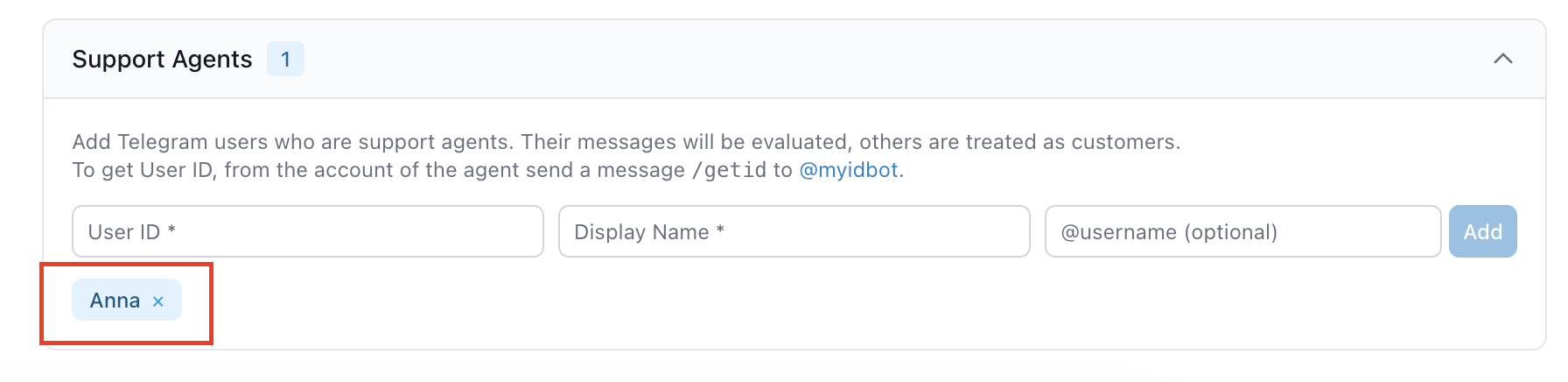
✅ The agent will appear in the list (as a chip/tag). Remove with the × on the chip.
3. Turn On Periodic Evaluation for Chats
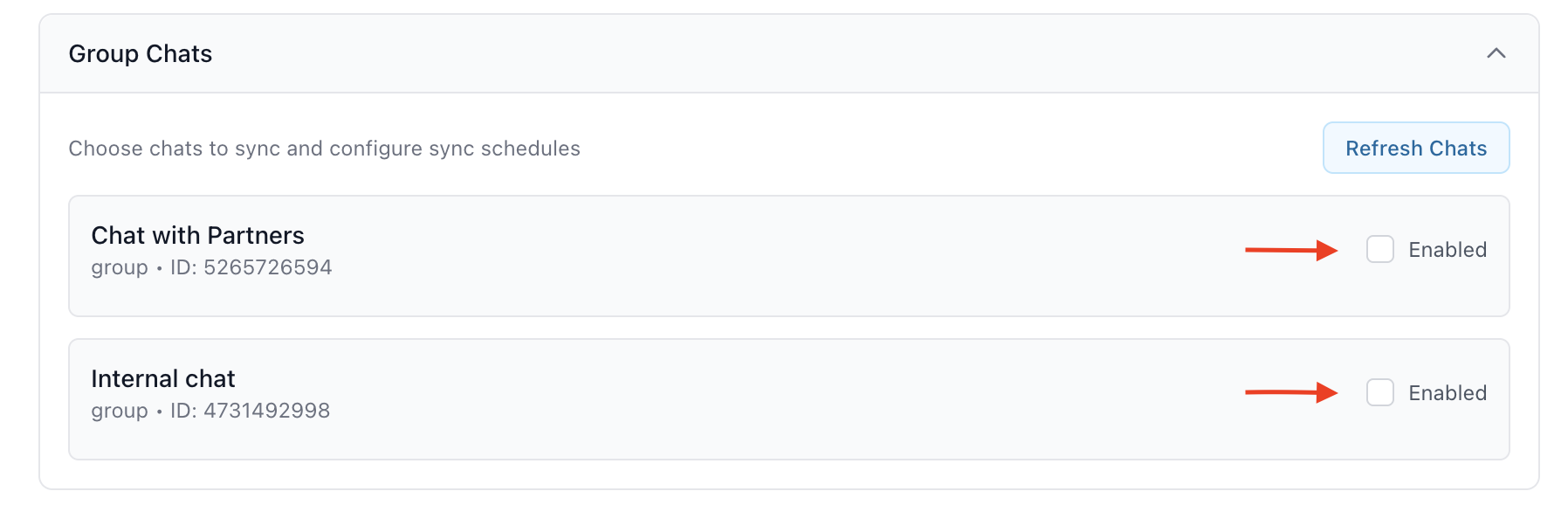
Scroll to the Chats section and click Refresh Chats — Qualiteam will fetch the list of available Telegram chats.
Refresh uses connected accounts only. Groups, channels, and forum topics keep their current account when that account still sees them. If it is disconnected or no longer sees the chat, refresh links the existing chat to another connected account that discovered it. If several accounts qualify, selection is stable. Private chats always belong to their original account.
Chats no longer found after a complete refresh disappear from Settings and new one-time evaluation choices. Their history, tags, evaluation settings, and schedules are retained; rediscovery restores the same chat. Disconnecting an account also hides its chats. After reconnecting, use Refresh Chats to confirm their availability. Historical conversation filters remain available. Periodic jobs and pending one-time runs wait while selected chats are unavailable without consuming retries. One-time runs keep their original evaluation windows. When a chat becomes available again or changes accounts, the scheduler applies the current account's backlog limit to resumed recurring windows. Refresh itself leaves schedule cursors unchanged; one-time windows remain uncapped.
If an account or forum cannot be fully refreshed, a warning appears. Confirmed results are applied, while uncertain chats keep their previous discovery state. A failed refresh never treats a temporary Telegram error as proof that a chat disappeared. Retry Refresh Chats after the connection recovers. Saved selections flag unavailable chats; restore their availability or use Remove unavailable chats before launching or saving the edited selection.
To include personal conversations, expand Connection, check Enable private chats for the account you want, then click Save changes, followed by Refresh Chats. The checkbox is saved with the other integration drafts; Refresh Chats is unavailable while this setting has unsaved changes or is being saved. Discard changes restores the saved setting. This option is off by default and requires permission to edit project settings. Private chats include people and bots; Saved Messages, Telegram's login-code dialog, and secret chats are excluded. Use Chat type: All / Groups / Private to filter the list. Private chat cards show the connected account and identify bots. Conversations with the same person through different accounts remain separate.
New private chats have periodic evaluation off. Add the account owner or correspondent as a project agent and enable that agent for evaluation before running an evaluation. Refresh Chats updates the matched agents. Chats without an eligible reviewed agent remain visible in settings but cannot run evaluations.

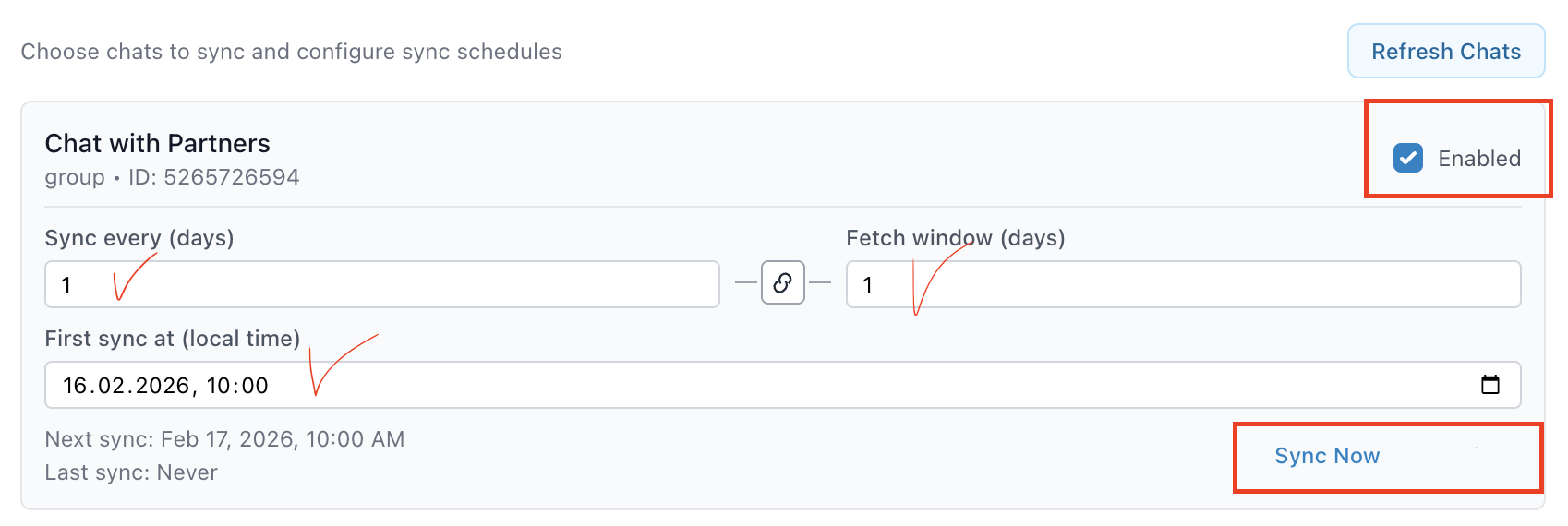
Turn on periodic evaluation for the chats you want by checking Periodic evaluation next to each chat.
After turning on periodic evaluation for a chat, you’ll see sync settings:
Sync every (days) — how often to sync (e.g.,
1= daily).Fetch window (days) — how many recent days to fetch on each sync (e.g.,
1= only the last 24 hours).First sync at (local time) — the date/time for the first scheduled sync (local time).
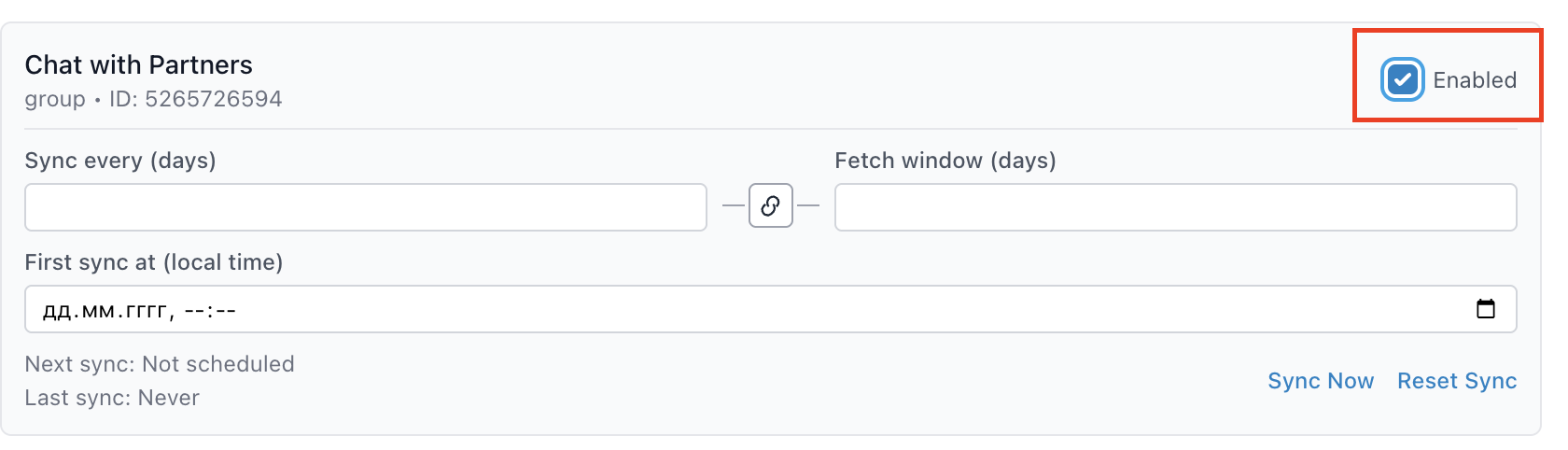
Fill in the sync settings for the selected chat. Sync Now runs the sync immediately, without waiting for the schedule. Use it to instantly pull messages and quickly verify that the integration and settings are working correctly (it will sync using your current Fetch window setting).
Each Telegram account stores its own manual pause and setup/resume limit for recurring windows owned by that account. These controls are not currently exposed in the Telegram settings UI. Sync Now is unavailable when that account is manually paused or the company is automatically paused because no free or paid quota remains.
The limit defaults to 10. On initial setup and the first recurring cycle after a pause, the newest windows are selected across that account's enabled chats, older accumulated windows are discarded, and the account resumes from the recorded boundary. A value of 0 skips the full accumulated recurring backlog. Existing conversations are never deleted. One-off evaluation batches are not capped; they remain pending without provider calls until every selected Telegram account is active.
Turning Enable private chats off pauses discovery and loading of private chats while groups continue syncing. After saving and clicking Refresh Chats, that account's private chats disappear from the chat list and new one-time evaluation choices. Reloading the page also updates the list. Stored conversations, historical filters, schedules, and reviewed-agent selections are preserved; re-enabling the option and refreshing restores the chats. Pending one-off runs keep their original dates; a mixed group/private batch that has not started waits for all selected chats to become available. When editing a saved draft or scheduled run, unavailable selected chats are counted and flagged. Re-enable them or click Remove unavailable chats before saving or launching the edited selection. Re-enabling private chats applies the account's backlog limit to missed private recurring windows without changing group schedules. An account-wide resume shares one limit across both types. Once private chats have been discovered, reconnecting requires the same Telegram user; use a separate connection for a different account.
For One-time evaluation, select Telegram, use the same Chat type filter, check the desired private chats, and choose the date range. Periodic evaluation can remain off. Switching filters preserves selected chats, and the selected count includes chats hidden by the current filter. Private chats from opted-out accounts are excluded when the list is reloaded; before reloading they show a paused state and cannot start a new run or use Sync Now. Bulk updates also use the type filter shown in their matching-chat preview.
🎉 All set! Your Telegram integration is connected. Check Conversations page to see the evaluations after synchronization.